
How to view Threads account and post data
Account details
Section titled “Account details”Click an account anywhere, or open one from Search or Leaderboards, to see its Account details:
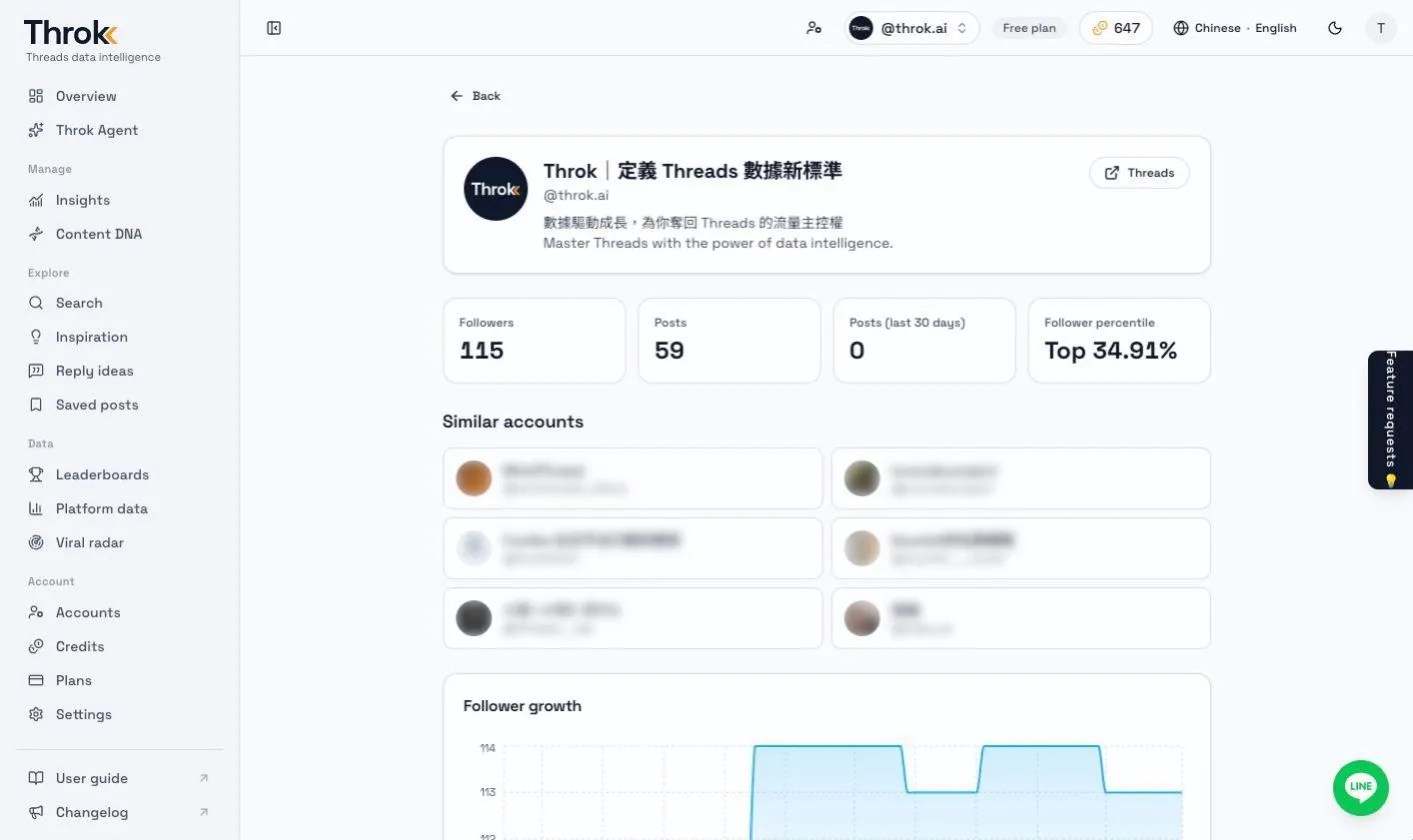
- Followers, post count and posts in the last 30 days
- Follower percentile: which top percentage of the platform this account’s follower count falls into
- Similar accounts
- Follower growth over the last 90 days
- Posting heatmap: when the account posts, and its posting streaks
- Top posts
Post details
Section titled “Post details”Click a post to see its Post details: the text, the current likes and replies, and an Engagement trend chart showing how engagement grew after posting (the 24-hour point is marked on the chart).
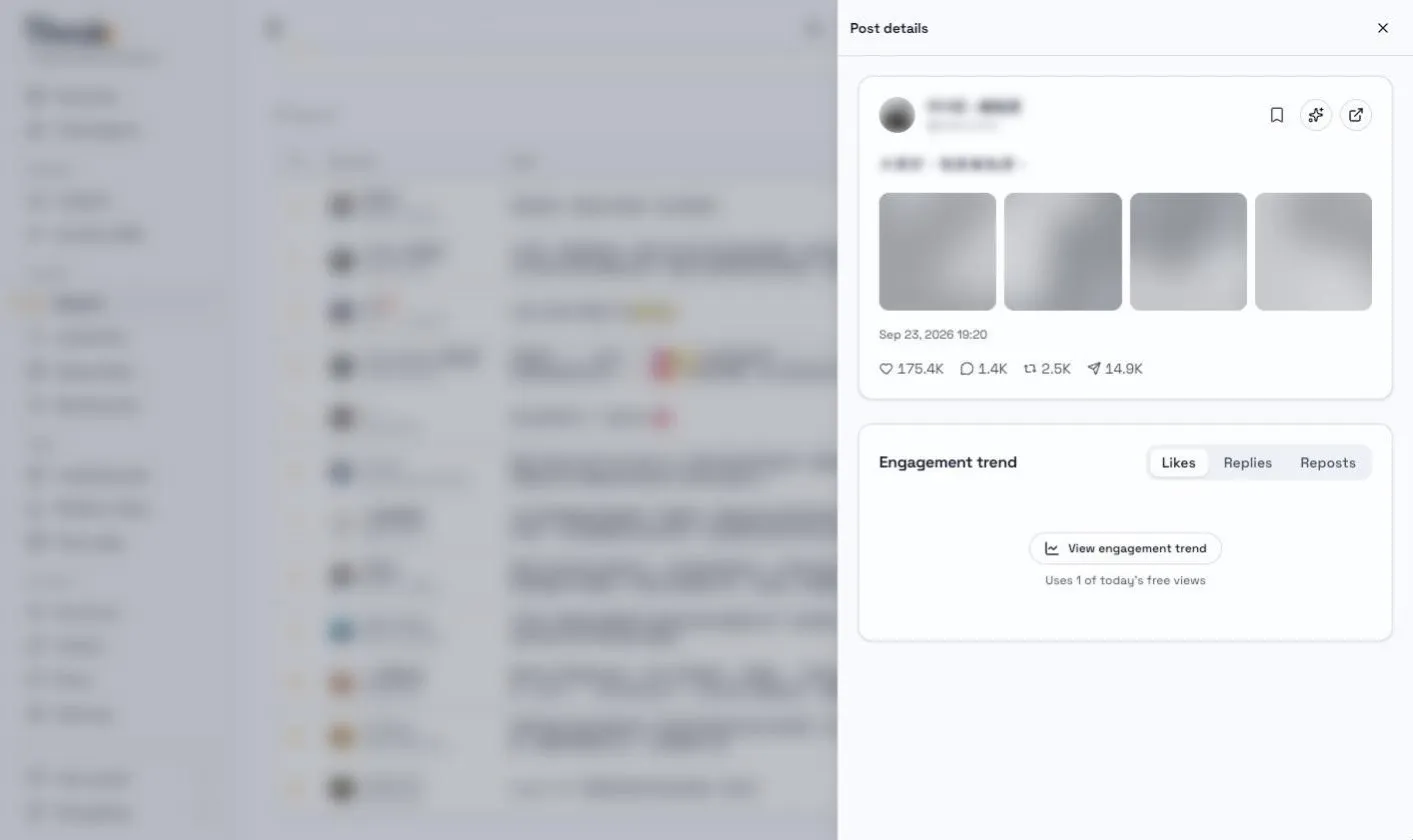
- On the Free plan, you can view the engagement trend for 5 posts a day. The trend only loads when you click View engagement trend, so just opening a post doesn’t use your quota. The page shows how many views you have left today. Paid plans have no limit, and the trend shows right away.
- Reply with Throk Agent: Have Throk Agent draft a reply to this post.
- Open in Threads: Go to the original post on Threads.
- Posts and accounts that were deleted or made private show as “removed”.
Your own account
Section titled “Your own account”Connect your Threads account in Accounts first. The features below need it to show data.
Insights
Section titled “Insights”Manage › Insights sums up how your current account is doing. Choose the last 7, 30 or 90 days (the Free plan can only see 7 days):
- Follower trend: A daily follower chart and the net follower change over the period. You can expand the daily breakdown.
- Posts in this period: The posts and replies you published in the period, with their engagement. Click one to open its post details. Click Export all to download every post and reply (requires the Pro plan).
The old Follower growth and Engagement pages are now part of Insights. Their old URLs redirect here.
Saved posts
Section titled “Saved posts”Click save on any post to find it later in Saved posts. You can create lists to organize them. The number of lists and posts per list depends on your plan. Throk Agent can also read your saved posts and use them as reference for analysis or writing.
Content DNA
Section titled “Content DNA”Your creator profile: the topics you cover, your goals, topics to avoid, and reference and competitor accounts. Click Fill in with AI to generate it from your posts (up to 5 times every 24 hours), then edit it yourself.
Throk Agent takes your Content DNA into account when it makes suggestions.
Accounts
Section titled “Accounts”- Enter a Threads username to connect an account. You don’t need to sign in to Threads.
- Switch the active account from the account menu in the header. How many accounts you can connect depends on your plan. When you reach the limit, Accounts shows the maximum number of accounts your current plan allows.
- After you connect an account, you can’t disconnect it for 30 days.
- If you have more accounts than your current plan allows (for example, after downgrading), the extra accounts show as Paused: they’re view-only, and neither the accounts nor their data are deleted. In Accounts, click Keep this account to choose which one to keep using, or upgrade your plan to restore all of them.