
How to use Throk Agent: analyze Threads data with AI
Throk Agent is the AI assistant in the web app. Ask a question in plain language and it queries Throk’s Threads data on its own, pulls out the key points and draws charts when they help.
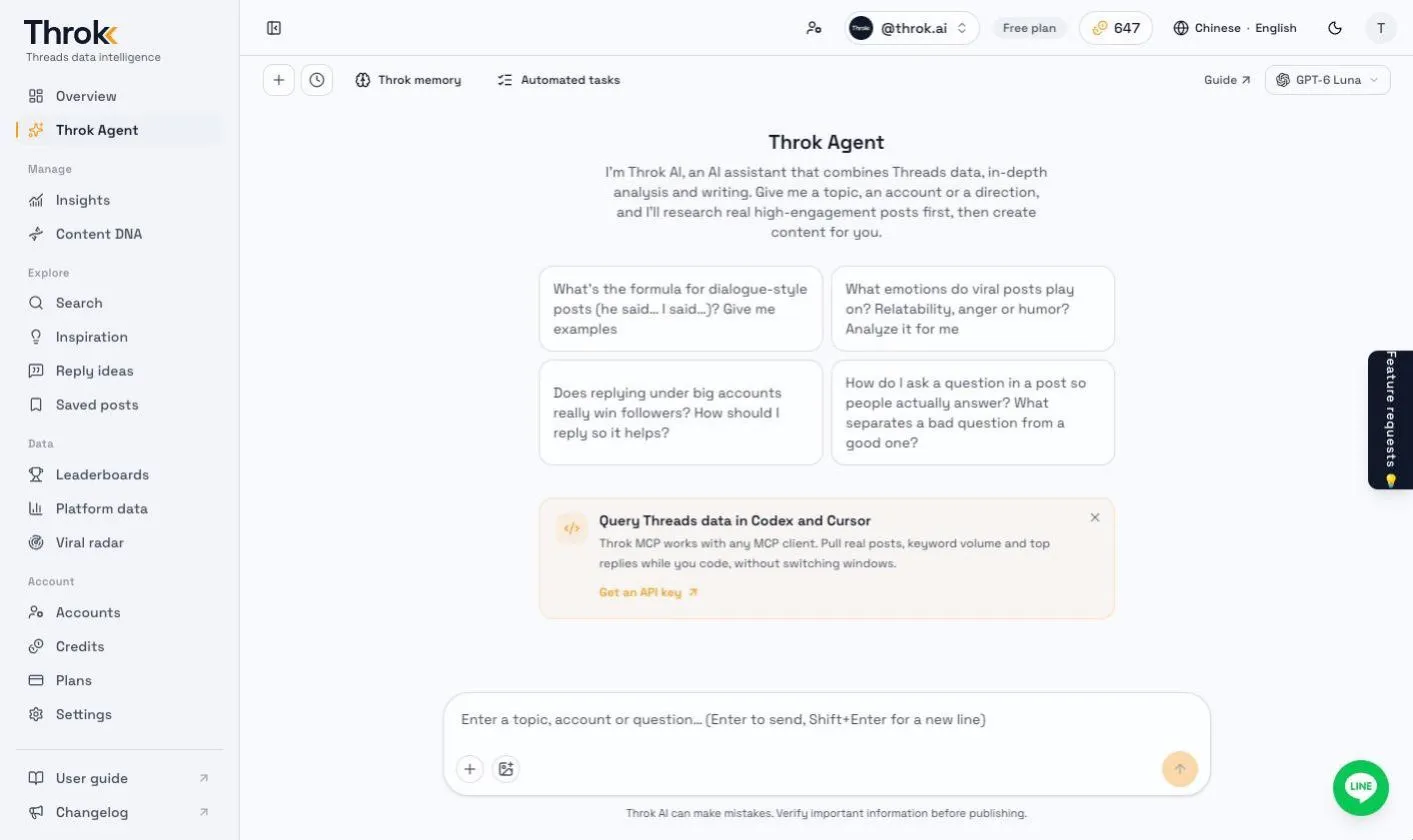
What you can ask
Section titled “What you can ask”- “What were the trending posts about cutting fat (減脂) on Taiwan Threads this past week? How do they open?”
- “Analyze the recent content direction and engagement of @some_account.”
- “Draft a reply to this post for me.”
Ask Throk Agent on the Overview page has ready-made prompt templates. Click one to get started.
Features
Section titled “Features”- Chat history: Every chat is saved and has its own URL, so you can come back and continue later. Past chats are in the sidebar’s Chat tab, where you can search and open them, or click + to start a new one.
- Keeps running when you leave: If you refresh or switch to another page, the answer still finishes in the background. Go back to the chat to see it. Click Stop to cancel.
- Attach images: Up to 4 images per message, 5 MB each. When you attach an image, Throk Agent switches to a model that supports images.
- Add context: Attach the post you want to reply to, the account you want analyzed, or your saved posts for more precise answers.
- Reply language: When drafting a reply, choose Auto, Taiwanese Mandarin (Traditional Chinese) or Cantonese.
- Uses your Content DNA: If you’ve filled in your Content DNA, Throk Agent tailors its suggestions to your positioning.
- Interactive charts and cards: Answers can include charts and cards. Posts and accounts mentioned in an answer open in the side panel.
- Memory and automated tasks: Throk Agent remembers your preferences and can schedule work for later. See below.
Cards in answers
Section titled “Cards in answers”Throk Agent shows the posts, accounts and numbers in its answers as cards. The numbers on a card come straight from Throk’s Threads data, not retyped by the AI, so they match what you see in Search or on an account page.
| Card | What it shows |
|---|---|
| Post card | Author, text, views, likes, replies and reposts. Click it to open the post in the side panel. |
| Account snapshot | Name, followers, the follower change over the period looked up, and bio. Live next to the follower count means it was just fetched from Threads. Click View account to open the account. |
| Follower chart | The account’s daily follower count as a line chart. |
| Topic ideas | Post ideas Throk Agent suggests. Click Write a draft and Throk Agent writes that idea up as a draft. |
| Throk tool card | A free Throk tool or page, such as Threads Circle or the Threads Video Downloader. Click to open it. |
- Tables: Click a column name to sort (number columns sort largest first), and click Download CSV to export.
- Write a draft sends a new question, charged like one you type yourself.
- Cards are saved with the chat and show again when you reopen it.
Throk memory
Section titled “Throk memory”Throk Agent notes your preferences and brand essentials during chats and reuses them next time, so you don’t have to explain them again. This is on by default.
- Personal preferences: Your habits and requests, such as “keep replies casual, no emoji”. Used in every chat.
- Brand notes: One set per Threads account, used only when that account is selected in the header.
- When Throk Agent saves or updates a memory, the chat shows “Remembered: …” or “Memory updated”.
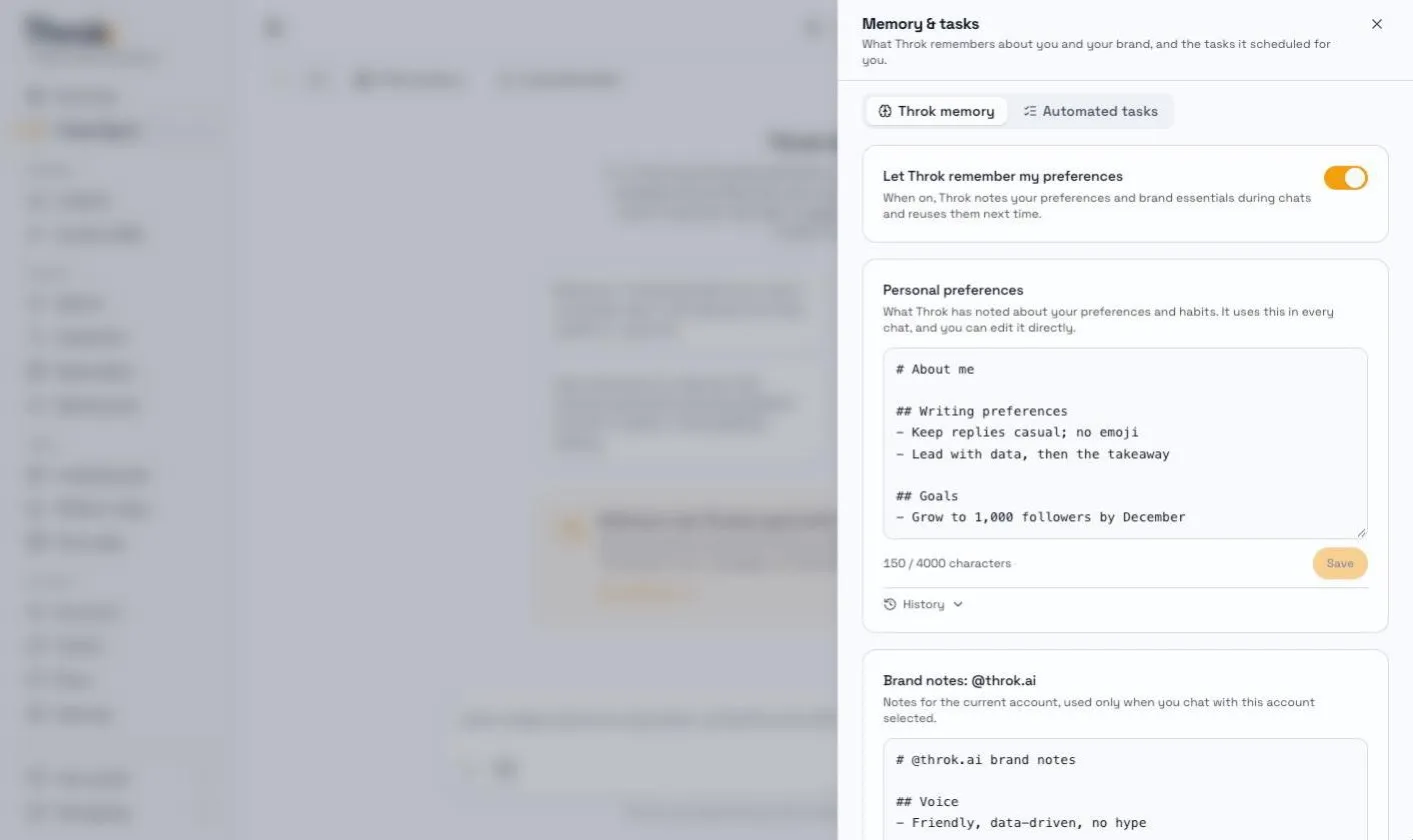
Click Throk memory in the sidebar’s Chat tab to:
- Turn Let Throk remember my preferences on or off. When it’s off, Throk Agent stops saving new memories and doesn’t use the saved ones.
- Edit the memory directly. Each memory can be up to 4,000 characters.
- Open History to see the changes Throk Agent and you have made, and Restore this version.
Automated tasks
Section titled “Automated tasks”Throk Agent can schedule work to run later on its own and report the results back to the original chat. Just ask in the chat:
| Type | Example |
|---|---|
| One-time | “Check how this post is doing tomorrow at 9 a.m.” |
| Recurring | “Summarize my account stats every Monday morning” |
| Watch | “Tell me when daily mentions of 拿鐵 (latte) go over 1,000”, “Let me know when this post reaches 5,000 likes” |
- Runs only after you confirm: Throk Agent first shows a task card in the chat. It starts only when you click Turn on. If you don’t need it, click No thanks. Proposals you don’t confirm within 24 hours expire.
- Credits: Each run costs the same credits as one question, using the model you picked when you created the task. For a watch, the checks themselves are free. Credits are only charged when the condition is met and a report is produced. Runs that don’t produce a report are refunded.
- Manage tasks: Click Automated tasks in the sidebar’s Chat tab to see the next run time and run history, and to pause, resume or cancel a task. Click View chat to go back to the chat the task reports to.
- Limits: Up to 10 active tasks at a time and up to 24 runs per day. Recurring tasks and watches run at most once an hour and end automatically after 30 days. A task that fails 3 times in a row is paused automatically.
Models and credits
Section titled “Models and credits”You can switch models next to the Send button in the input box. Each question costs credits based on the model:
- The default model costs the least, about 50 credits per question (the Free plan’s 100 daily credits cover about 2 questions). It’s good for everyday lookups.
- Stronger models (such as Claude Opus) cost several times as many credits as the default model. Use them for questions that need deeper analysis.
Throk Agent checks that you have enough credits before it runs. If a run fails, the credits are refunded. Your current credit balance is shown in the header.
- Be specific: State the time range, the post language and the output format you want, for example “list the top 5 posts with like counts and links”.
- Same keyword matching rules: Throk Agent uses the same keyword rules when it searches posts. To cover several spellings, list them in your question, for example “search AI, OpenAI, 人工智慧”. See Search examples.
For an overview of what Throk Agent can do, see Throk Agent.