
How to search Threads posts with the Throk web app
The Search page finds posts by keyword plus filters such as likes, replies and publish date, and exports the results to Excel or CSV.
How to search
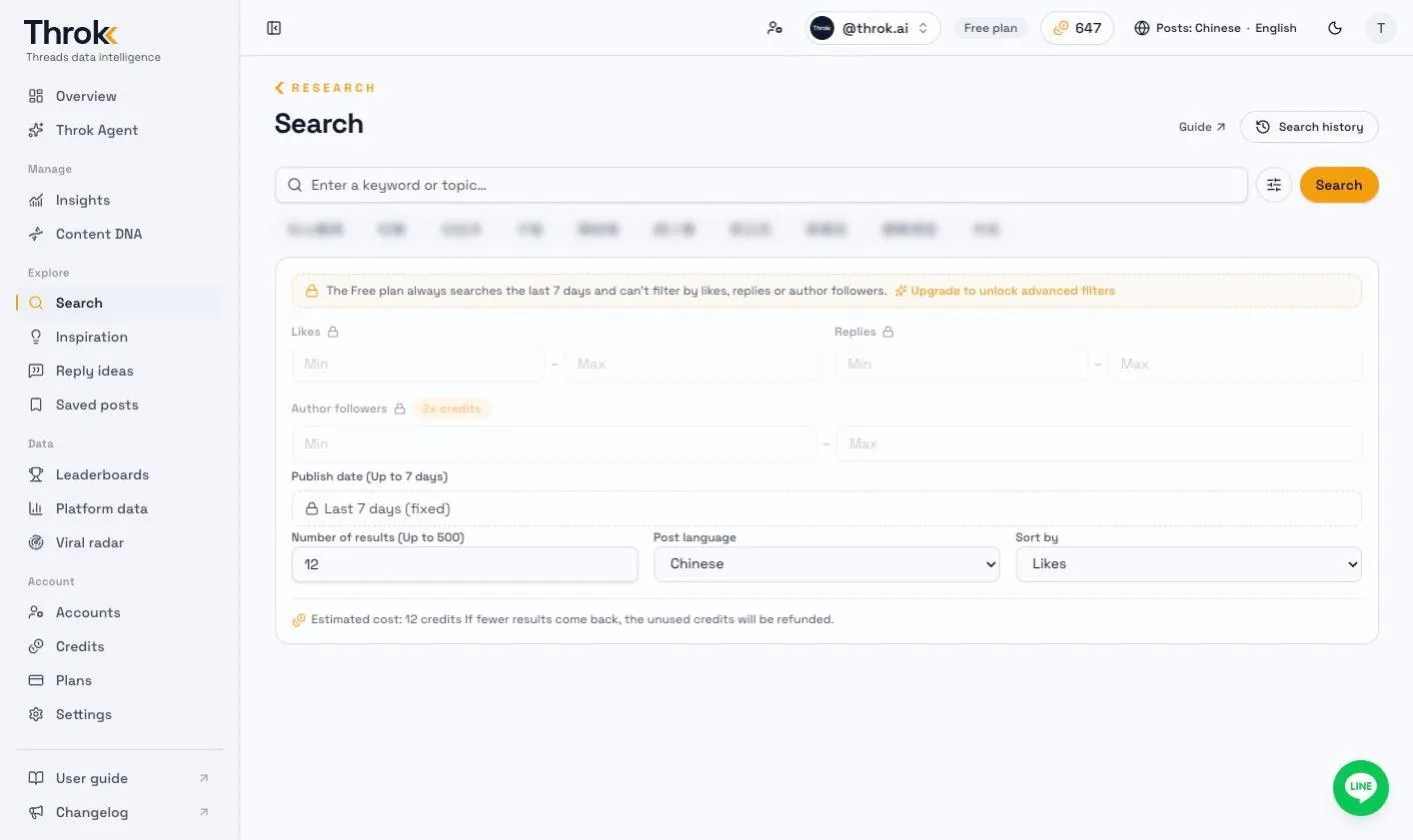
Section titled “How to search”- Type one keyword of at least 2 characters in the search box. The whole entry is treated as a single phrase, and spaces don’t mean “or”. To find several spellings, run a separate search for each. You can also leave the box empty and search by filters only.
- Set Advanced filters if you need them (see below).
- Click Search. The page shows how many credits this search is expected to use. Results usually appear within a few seconds to a minute.
Your search filters and results are saved in the URL. If you open the same URL later, it shows the earlier results first and doesn’t charge credits again. Clicking Search runs the query again and charges credits.
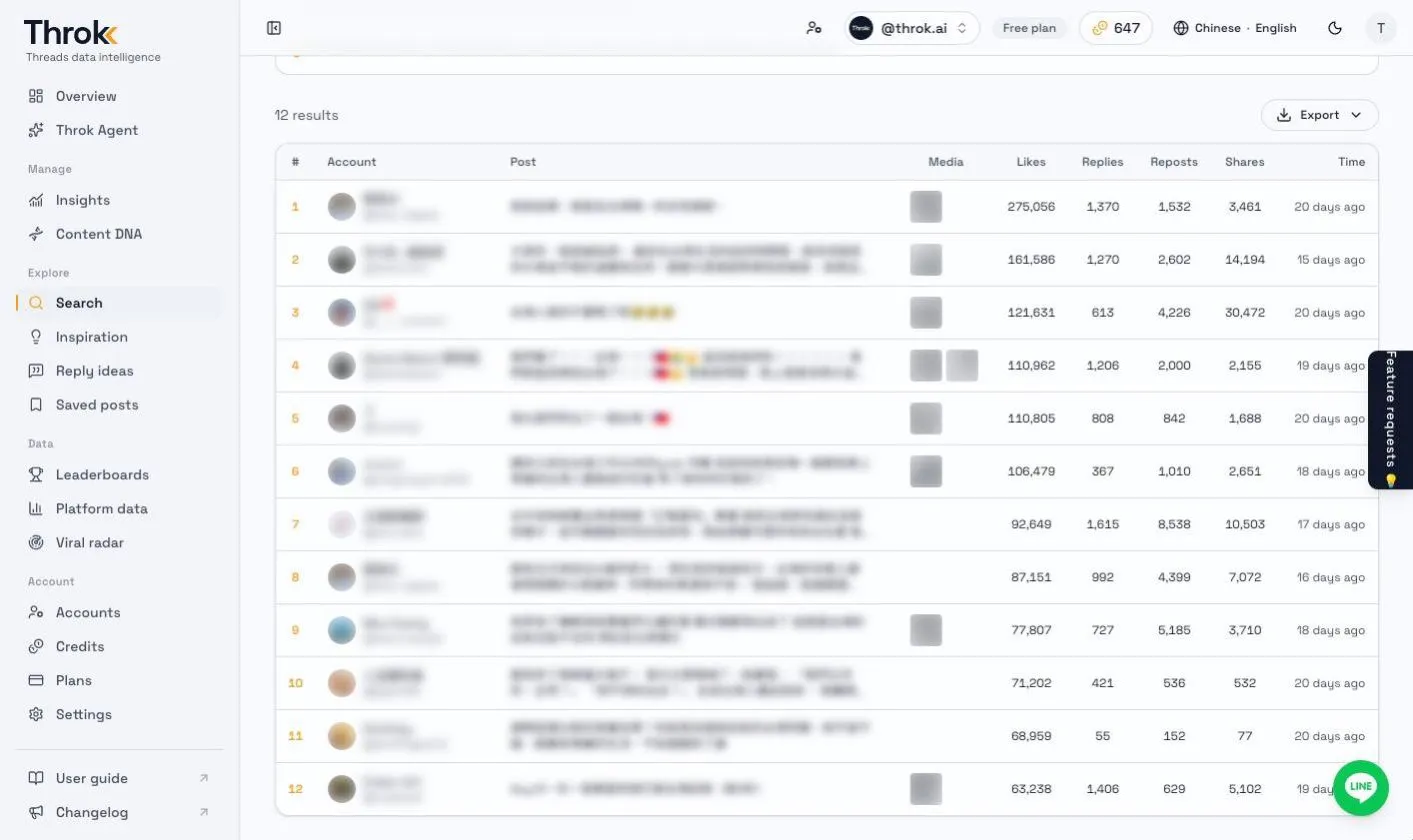
When the search finishes, the results are listed in a table. Click any row to see the post details in the right-hand panel:
Advanced filters
Section titled “Advanced filters”| Filter | Description |
|---|---|
| Likes | Minimum and maximum |
| Replies | Minimum and maximum (direct replies) |
| Author followers | The author’s follower range. See below for details. Using this filter doubles the credit cost |
| Publish date | Start and end date, up to 30 days back. Defaults to the last 7 days. Fixed to the last 7 days on the Free plan |
| Number of results | 12 by default, up to 500 |
| Post language | Traditional Chinese, Simplified Chinese, Cantonese, English, Japanese or Korean. The options are the same as the Post language setting in the header. Each search covers one language |
| Sort by | Likes (default), Replies, Newest, Oldest |
- The Free plan can’t use the Likes, Replies or Author followers filters, and Publish date is fixed to the last 7 days. Number of results, Post language and Sort by are all available. Upgrade to a paid plan to use every filter.
- Results include both top-level posts and replies. Use the “Is reply” column in the export to tell them apart.
How the author followers filter works
Section titled “How the author followers filter works”- It uses the follower count Throk has recorded. Each author gets a single number: the latest record up to 24 hours after the newest post in this set of results. So it’s usually close to the author’s current follower count, not necessarily the count when each post was published.
- Accounts Throk has no follower record for count as 0 followers. They’re included if you only set a maximum, and excluded if you set a minimum.
- The filter is applied to the top-ranked candidate posts, so you may get fewer results than you asked for. The difference is refunded.
How credits work
Section titled “How credits work”- 1 credit per result, calculated up front from the Number of results you set.
- With the Author followers filter, each result costs 2 credits.
- If fewer results are found than you asked for, the difference is refunded automatically.
- If you don’t have enough credits, the number of results is capped at what your balance covers.
Keyword suggestions
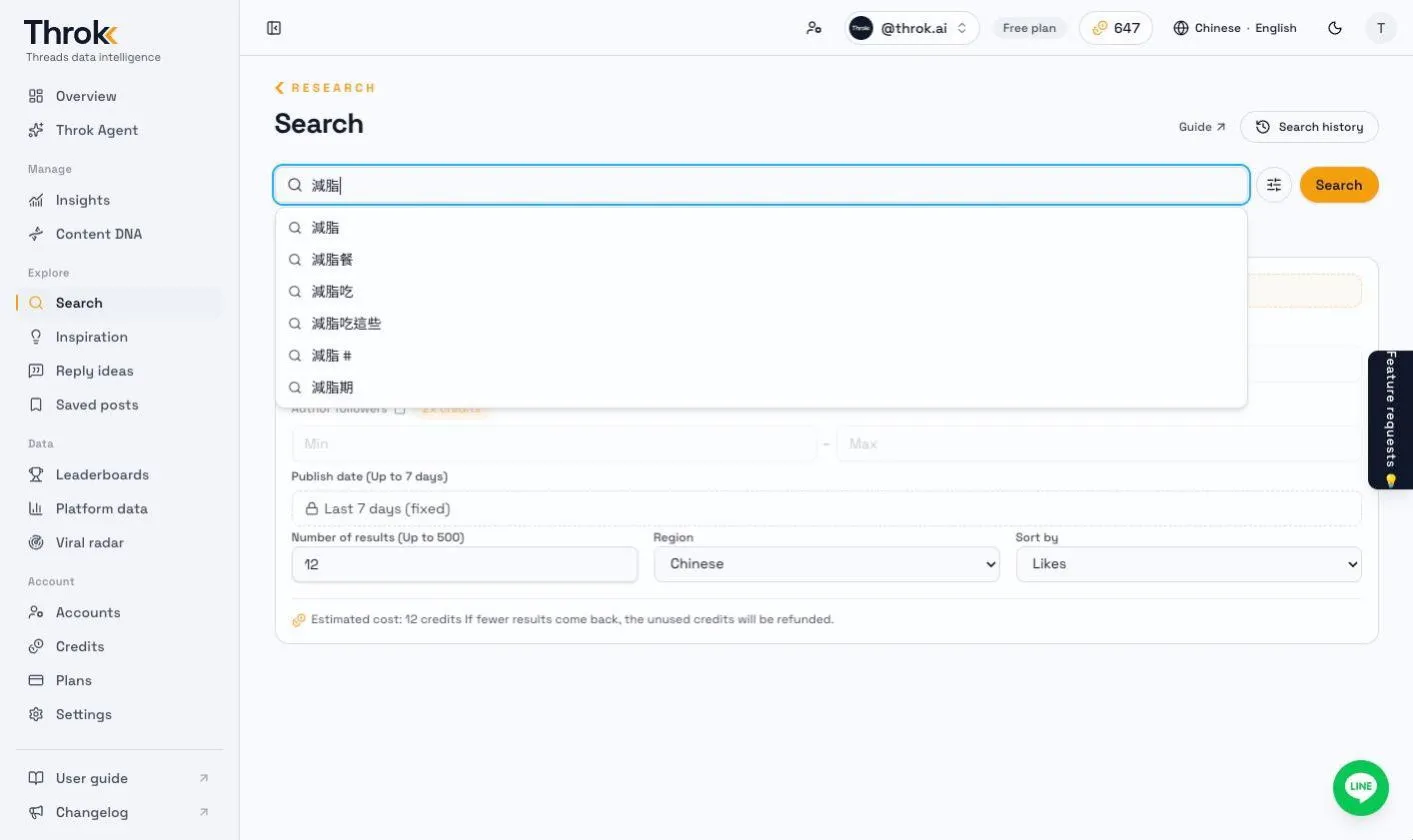
Section titled “Keyword suggestions”As you type, the search box suggests common phrases that start with what you’ve typed, based on posts from the last 3 days. Clicking a suggestion only fills it into the search box. It doesn’t run the search.
Search history
Section titled “Search history”Click Search history on the Search page to see all your past searches, with the filters you used, the number of results and the credits used.
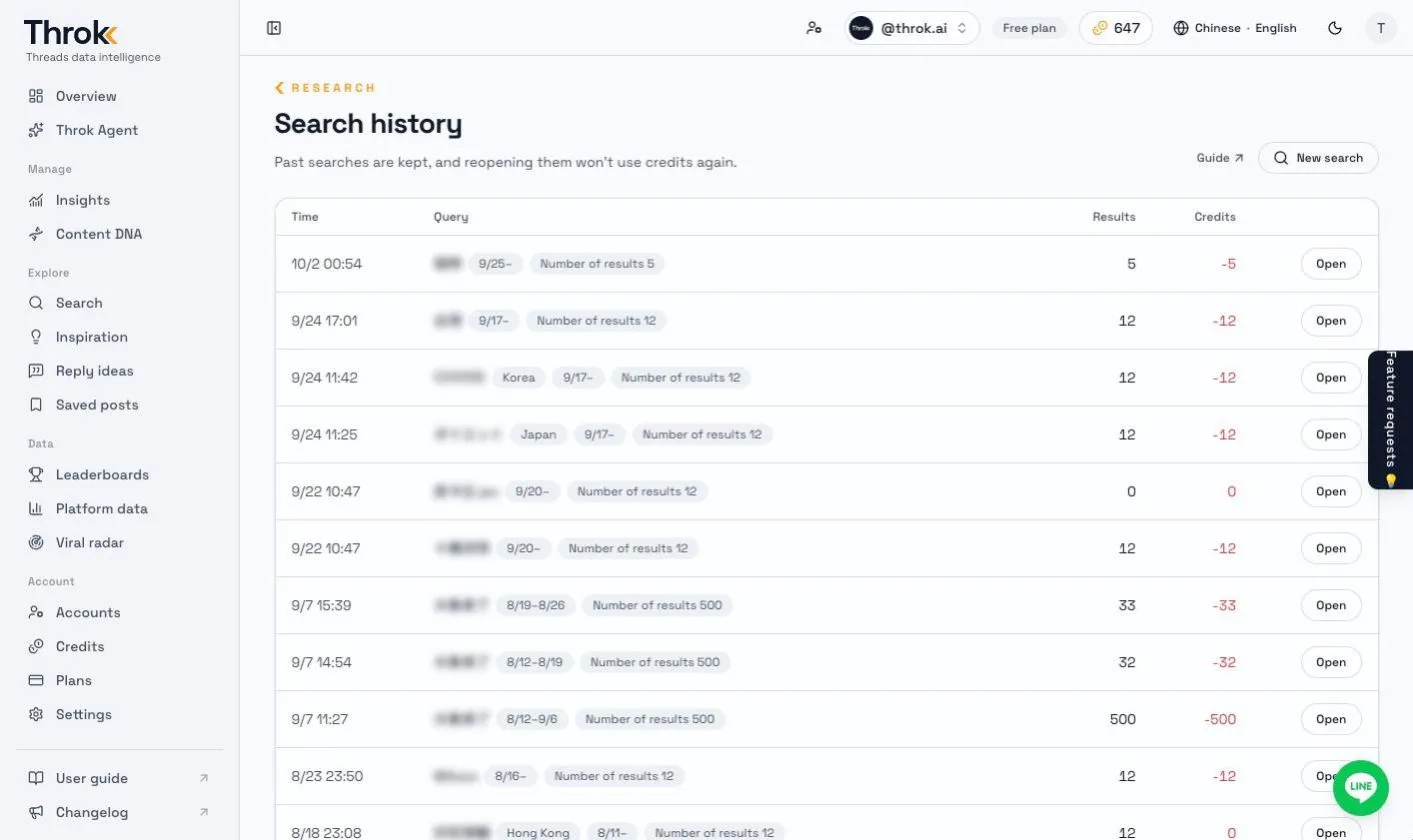
- Click Open on a finished search to see its results again. No credits are charged.
- In the usage history on the Credits page, search entries also link straight back to their results.
- Only you can see your search results. If you share the URL, other people can’t open it.
Export results
Section titled “Export results”Use the Export menu above the results to download Excel (.xlsx) or CSV.
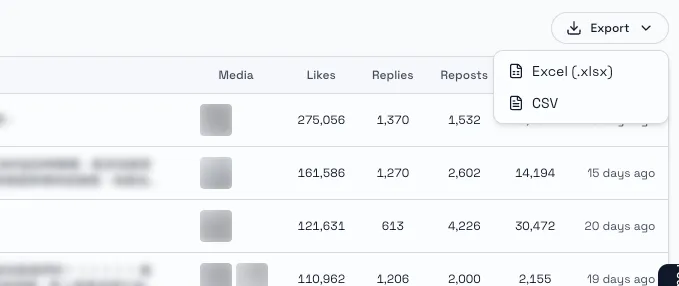 Columns include Username, Name, Post code, URL, Posted at, Content, Likes, Replies, Reposts, Shares, Is reply, Reply to and Has media.
Why can’t I find a post I know exists?
The most common reason is how keywords are matched. For example, searching AI won’t find a post that only says “OpenAI”, and searching コーヒー won’t find “アイスコーヒー”. See the search examples and run a separate search for each spelling. Also check that the post falls within the publish date range and that the post language is set correctly.
The search keeps showing as processing?
If there are still no results after a minute, the page shows “This search is taking longer than usual. Please try again later.” You can check the results later in Search history.